Certificate Pinning in Mobile SDK
Certificate Pinning is a security mechanism that allows the Document Reader SDK to trust only a specific server certificate or public key, instead of relying solely on the standard system trust store. This helps reduce the risk of man-in-the-middle attacks even if a trusted Certificate Authority (CA) is compromised or misused.
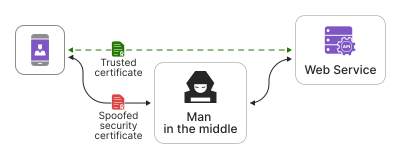
This guide explains the process of SSL pinning on Android, focusing on the generation of a certificate public hash key and its integration into the Android Network Security Configuration.
1. In the OpenSSL command line tool, enter the following command to generate the .der file. Make sure to replace <your-server-domain> with the domain of the server for which you want to pin the certificate.
openssl s_client -connect <your-server-domain>:443 -showcerts < /dev/null | openssl x509 -outform der > server_cert.der
2. After generating the certificate, create a public key in a .pem file. Replace the name <server_cert> with the name generated in step 1.
openssl x509 -inform der -in <server_cert>.der -pubkey -noout > <server_cert_public_key>.pem
3. Now you need to hash the certificate with a hashing algorithm. The following example uses SHA-256 to hash the key. Replace the <server_cert_public_key>.pem name with the one you provided.
cat <server_cert_public_key>.pem | openssl rsa -pubin -outform der | openssl dgst -sha256 -binary | openssl enc -base64
4. To insert the public hash key into Android network security configuration, open your AndroidManifest.xml file and add the following network-security-config block within the application element:
<application>
    <!-- ... -->
    <meta-data
        android:name="android.security.net.config"
        android:resource="@xml/network_security_config" />
    <!-- ... -->
</application>
5. Create a new XML file (for example, network_security_config.xml) in the res/xml directory with the following content:
<network-security-config>
    <domain-config>
        <domain includeSubdomains="true">api.regulaforensics.com</domain>
        <pin-set>
            <pin digest="SHA-256">/5RKFaPkCjAzvsEZHOlYqncYADaLIG5VfTmhsBbkaBk=</pin>
        </pin-set>
    </domain-config>
</network-security-config>
Insert the obtained public hash key as the value of the <pin> element.
6. To test SSL pinning, intentionally change a character in the pin value to make it invalid. When making a request, the system should detect the incorrect pin and terminate the process.
This guide explains the process of SSL pinning, focusing on the generation and integration of a certificate public hash key.
1. Open your terminal and enter the following command to generate the .cer file. Replace <your-server-domain> with your desired server.
openssl s_client -connect <your-server-domain>:443 -showcerts < /dev/null | openssl x509 -outform der > <server_cert>.cer
2. After generating the certificate, create a public key in a .pem file. Replace the name <server_cert> with the one generated in step 1.
openssl x509 -inform der -in <server_cert>.cer -pubkey -noout > <server_cert_public_key>.pem
3. Hash the certificate with a hashing algorithm. The following example uses SHA-256 to hash the key. Replace the <server_cert_public_key>.pem name with your provided name.
cat <server_cert_public_key>.pem | openssl rsa -pubin -outform der | openssl dgst -sha256 -binary | openssl enc -base64
4. To integrate the public hash key into iOS, open your Xcode project and update the target Info.plist file so it includes the NSPinnedDomains section in the NSAppTransportSecurity settings:
<key>NSAppTransportSecurity</key>
<dict>
    <key>NSPinnedDomains</key>
    <dict>
        <key><your-server-domain></key>
        <dict>
            <key>NSIncludesSubdomains</key>
            <true/>
            <key>NSPinnedLeafIdentities</key>
            <array>
                <dict>
                    <key>SPKI-SHA256-BASE64</key>
                    <string>r/mIkG3eEpVdm+u/ko/cwxzOMo1bk4TyHIlByibiA5E=</string>
                </dict>
            </array>
        </dict>
    </dict>
</dict>
Replace <your-server-domain> with your actual server domain.
Replace SHA-256 hash key in the NSPinnedLeafIdentities array with the generated key.
5. To test SSL pinning, intentionally change a character in the public hash key value to make it invalid. When making a request, the system should detect the incorrect pin and terminate the process.
Examples
See the sample projects, demonstrating usage of Certificate Pinning: