Risk Predictors in IDV Platform
Why Use
IDV provides a compliance mechanism for identifying and preventing potentially risky verification attempts, such as device fingerprint mismatch, suspicious IP location, biometric inconsistencies, and other risk signals. Risk Predictors help detect suspicious activity during identity verification by checking sessions against configurable risk conditions.
Who Should Use
Who is this feature for: Platform administrators who configure risk checks, define thresholds, and manage automated responses to detected risks.
Who Has Permissions to Use
Access to Risk Predictors and the available actions depends on your assigned permissions. For details, refer to Permissions.
Key Concepts Before You Start
- Risk predictors are configurable rules that check for specific risk conditions during a verification session.
- A predictor can be assigned to one or more workflows. It is checked only for sessions associated with those workflows.
- Predictors are checked when relevant session events occur, such as when a profile or device is attached to a session. The event that triggers the check depends on the predictor.
- Saved predictor settings can affect both new sessions and sessions already in progress. A predictor is checked when a relevant session event occurs.
- Predictors are checked in priority order. If a higher-priority predictor detects a risk, the system performs its configured response action and terminates the session. The remaining predictors are not checked.
- You can configure each predictor's settings to match your company's compliance requirements:
- Activate or deactivate the predictor.
- Set its threshold value.
- Assign a response action to apply when the predictor detects the configured risk condition.
- Select one or more workflows to which the predictor applies.
- Change the predictor priority.
- View the predictor change history and filter it by predictor name.
View All Risk Predictors
To open the list of all risk predictors, go to the Settings tab on the left, click Compliance, and then click Risk Predictors.
The Risk Predictors view displays all predefined risk predictors and their settings.
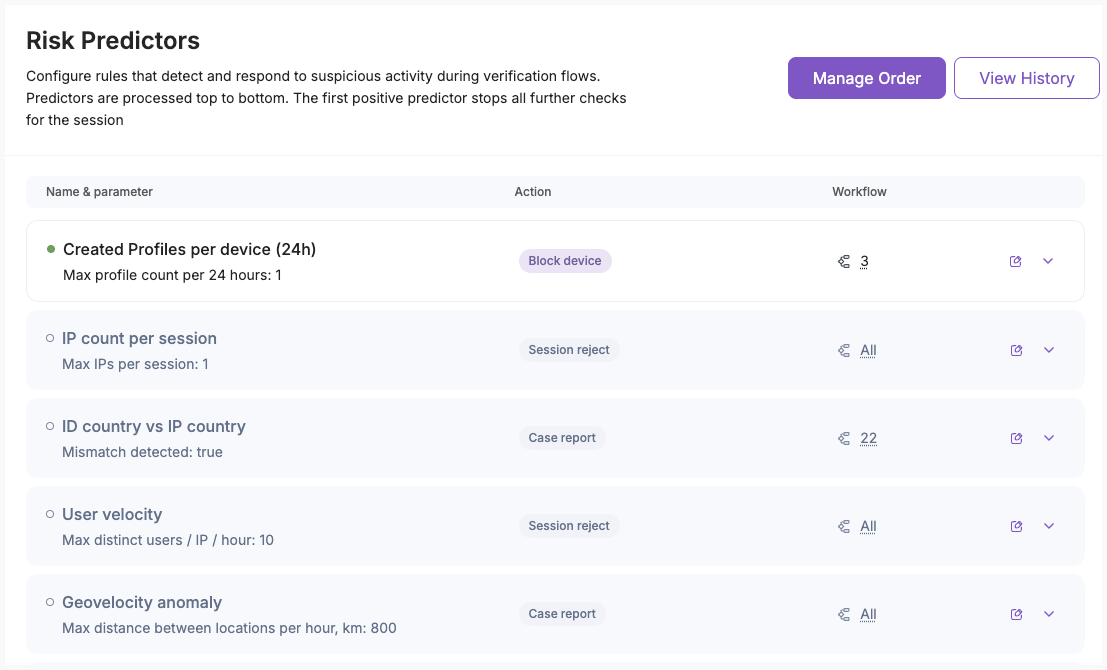
- Active predictors are highlighted in the list.
- To view a predictor's description and the risk it detects, click the expand icon in its row.
- To view the workflows assigned to a predictor, hover over the indicator in the Workflow column.
The table below lists the available risk predictors, their descriptions, default response actions, parameter types, default values, and allowed values.
| Risk Predictor | Description | Response Action | Parameter Type | Default Value | Allowed Values |
|---|---|---|---|---|---|
| Created Profiles per device (24h) | Max number of Profiles allowed to be created from the same device within a 24-hour period | Block device | Int | 3 | Positive Int, max 999 |
| IP velocity | Max number of IP address changes allowed for the same user within one hour | Case report | Int | 3 | Positive Int, max 999 |
| User velocity | Max number of unique user profiles allowed to access the platform from the same IP address within a specified time period. | Session reject | Int | 10 | Positive Int, max 999 |
| Geovelocity anomaly | Max distance, in kilometers, allowed between consecutive user login locations within one hour. | Case report | Int | 800 | Positive Int, max 999 |
| Failed verification retry | Max number of repeated verification failures allowed within an hour. | Session reject | Int | 3 | Positive Int, max 999 |
| Verifications per device (24h) | Maximum number of unique profiles that can complete verification using the same device within 24 hours. | Block device | Int | 7 | Positive Int, max 999 |
| New device | New device is detected | Case report | Boolean | true |
Not editable, the true value is read-only |
| Device count per session | Max number of devices that can be used during a single session | Block device | Int | 1 | Positive Int, max 999 |
| IP count per session | Max number of IP addresses that can be used during a single session | Session reject | Int | 1 | Positive Int, max 999 |
Configure Risk Predictor's Settings
To configure a risk predictor:
-
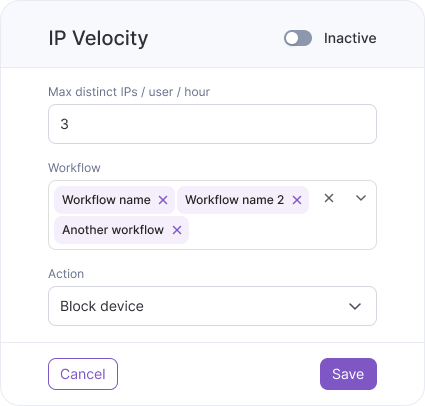
In the Risk Predictors view, click the edit icon in the predictor's row.

-
In the dialog that opens, make necessary changes:
-
Click Save to save your changes.
Note
Saved predictor settings apply to all sessions associated with the selected workflows, including sessions already in progress. A predictor is checked when a relevant session event occurs. If the configured risk condition is detected, the system performs the selected response action. Saving changes does not itself trigger a predictor check.
Activate predictor
To activate a risk predictor, in the header of the Risk Predictor dialog, turn on the toggle in the predictor's settings, then click Save.
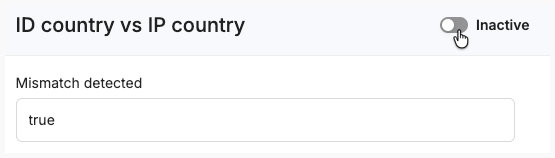
The activated predictor is checked when a relevant event occurs in any session associated with its selected workflows, including sessions already in progress.
Change value
To change a predictor's threshold value, enter the required value in the first field of the , then click Save.
For the default values, parameter types, and allowed values of each predictor, see View All Risk Predictors.
Assign workflow
To specify which workflows a predictor applies to, select one or more workflows from the Workflow drop-down list, then click Save.
Make sure the predictor is relevant to the selected workflows based on your company's verification processes and risk requirements.
Set action
A response action determines what happens when a risk predictor detects its configured risk condition.
To set a response action, select the required action in the Action field, then click Save.
The selected action terminates the session and may also change the profile status, create a case, or block a device. The table below describes the outcome of each response action.
| Action | Session Status | Profile Status | Other Notes |
|---|---|---|---|
| Block Device | Rejected: The session is terminated. | Not changed | The device is blocked tenant-wide and added to the tenant blacklist. The block is not limited to the profile associated with the session. See other notes below the table. |
| Case Report | Not verified: The session is terminated. | Suspended: The profile is suspended until a manual decision is made. | A new case is created and linked to the session and its profiles. |
| Profile Reject | Rejected: The session is terminated. | Rejected | The session and profile are set to Rejected. New verification sessions can still be started for the profile, but they are automatically rejected while the profile has the Rejected status. See more notes below the table. |
| Session Reject | Rejected: The session is terminated. | Not changed | The session remains linked to the profile. |
When you verify the Profile Reject status, consider the following:
- The current session and profile are set to
Rejected. New verification sessions can still be started for the profile. Their processing and results depend on the verification workflow.
To review the rejection and decide what to do next:
- Go to Profiles and open the rejected profile.
- Review the profile details and verification results to investigate the reason for rejection.
- Based on the verification results and your organization's requirements, decide whether to keep or change the profile status. You can change the status in the profile details.
- If further verification is required, resolve the issue that caused the rejection and restart the verification workflow or start a new one.
When you configure the Block Device response action, consider the following:
-
Allowed: Devices with this status cannot be blocked. To allow blocking, you should first change the device status to
Regular. If a predictor detects a risk involving an allowed device:- The Block Device response action is not applied, and the device is not blocked.
- The current session is not terminated and is not set to
Rejectedby this action. - The system continues checking the remaining predictors in the configured order.
-
Regular: Devices with this status can be blocked if a risk predictor detects the configured risk condition and applies the Block Device response action.
-
Blocked: Devices with this status are already on the tenant-level blacklist and cannot be used to start new sessions.
Device blocking applies tenant-wide. When a device is blocked, it cannot be used to start sessions with any profile within the tenant, not just the profile associated with the original session.
View blocked device
To view a blocked device:
- Click Profiles in the left navigation menu.
- In the Profiles view, open the required profile.
- In the profile card, open the Devices tab.
The device is displayed with the Blocked status.
Manage Predictors' Execution Order
You can change the order in which risk predictors are checked during session processing. The predictor at the top of the list has the highest priority.
Predictors are checked in the configured order:
- If a predictor does not detect a risk, the next predictor is checked.
- If no predictor detects a risk, the session continues according to its workflow.
- If a predictor detects a risk, the configured response action is applied and the session is terminated. The remaining predictors are not checked.
To change the execution order:
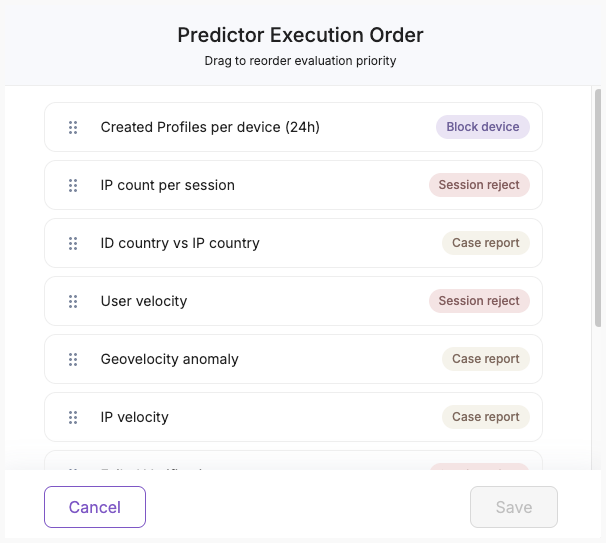
- In the Risk Predictors view, click Manage Order.
-
In the Predictor Execution Order window, drag predictors to the required positions. You can move a predictor to any position in the list.
-
Review the new execution order.
- Click Save to apply the changes.
The Save button becomes available after you change the position of at least one predictor.
To discard your changes, click Cancel. The previously saved execution order remains unchanged.
Important
The updated execution order can affect both new sessions and sessions already in progress. Saving the order does not trigger a predictor check. The updated order is used when a relevant event occurs during a session.
View Change History
To view the history of changes to risk predictor settings, click View History. The change history is read-only. You can review previous changes and use this information to decide whether to revert or reconfigure predictors' settings.
The Change History table displays a record for each change made to a risk predictor's settings. Records are displayed in chronological order, with the most recent changes first. The sorting order cannot be changed.
| Column | Description |
|---|---|
| Date | Date and time when the change was made. The time is displayed in the your local time zone. |
| Updated By | A user who made the change. The user's first and last name and email address are displayed when available. If either the name or email address is unavailable, only the available value is displayed. For a deactivated account, [deactivated] appears next to the user details. |
| Predictor | The name of the risk predictor that was changed. If the predictor was deleted, its name remains in the history and is marked as [deleted]. |
| Modification | The type of a change made to the risk predictor. |
| Old Value | The value of the setting before the change. |
| New Value | The value of the setting after the change. |
Filter Change History
To find changes made to specific risk predictors, in the Predictor filter field:
- Select one or more predictors from the drop-down list.
- Review the filtered results. The table updates automatically.
- To display changes for all predictors again, select All.
To clear the current selection, in the drop-down list click selected predictors again.