Manage Groups with RBAC in IDV Platform
Groups are used to organize users and grant access to IDV Platform features and resources. Roles are assigned to groups, not directly to users, and users inherit permissions from the roles assigned to their groups.
The Groups feature allows Platform Administrators and other authorized users to view and manage groups, assign roles, and manage group membership.
Depending on your assigned permissions and the group type, you can create and edit groups, add or remove users, and assign or remove roles.
- View groups
- View group details
- Edit group
- Create group
- Add users
- Remove users
- Assign roles
- Remove roles
- Delete group
View Groups
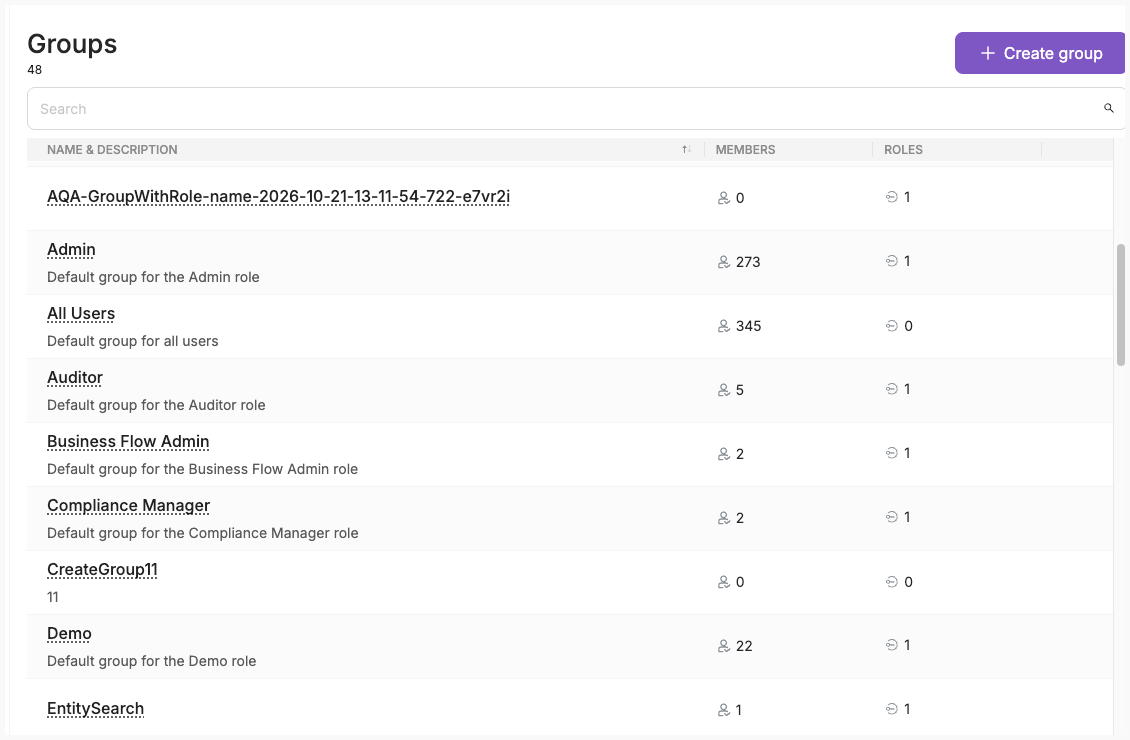
To view groups, in the left sidebar, click Settings, select Team, and then click Groups. The Groups page opens as shown below:
Note
Available features and actions depend on your assigned roles and permissions. The interface available to you may differ from what is described in this guide. If you need additional permissions to perform your tasks, contact your Platform Administrator.
The Groups page displays the groups you have access to (including groups you created yourself), sorted alphabetically by name (A–Z) by default.
The page shows the following information:
| Column | Description |
|---|---|
| Name | Displays the group name and its description underneath. Long descriptions are shortened. Hover over a truncated description to view the full text. |
| Members | Displays the total number of users in the group, including active and inactive users. Groups without members display 0. |
| Roles | Displays the number of roles assigned to a group. If you have permission to view roles, hover over the number to see the role names. Otherwise, only the number is displayed. |
From this table you can also open the row menu in order to:
- Manage Roles—manage the roles assigned to the group.
- Manage Members—add or remove users from the group.
To open the menu, in the last column for the required group row, click the ... button.
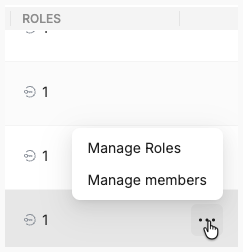
The available options depend on the group type and your assigned permissions. If you cannot perform a task you need, contact your Platform Administrator.
Search groups
To search for groups, enter at least three characters in the search field. Search is case-insensitive and runs automatically as you type.
View Group Details
To view a group's details, click its row on the Groups page.
The Group Details page opens, with the group name displayed as the page title.
The page contains three sections, available from the side menu:
- Overview—view it for general information about the group.
- Assigned users—see users who belong to the group.
- Assigned roles—see roles assigned to the group.
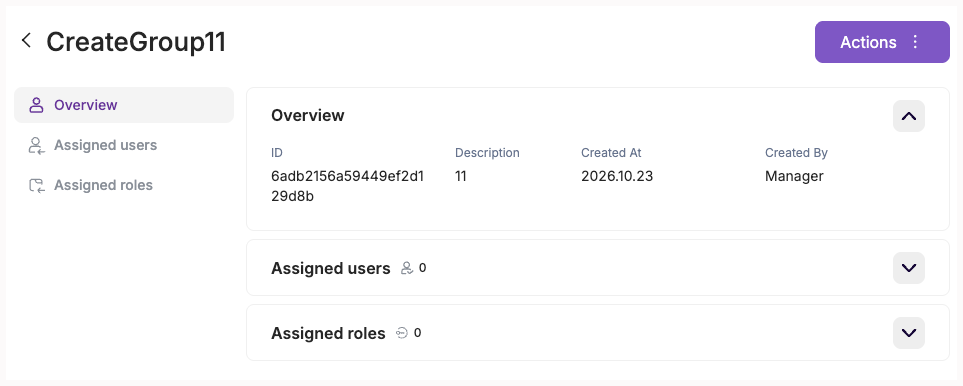
All users in a group receive the roles assigned to that group. If a user belongs to multiple groups, they receive the combined roles of those groups.
Overview
The Overview section displays the following read-only information:
| Field | Description |
|---|---|
| Name | Group name. |
| ID | Unique group identifier. |
| Description | Group description. |
| Created At | Date and time when the group was created. |
| Created By | Login of the user who created the group. |
For default groups, Created By displays -, and Created At displays the date when the Platform was initially deployed.
To change the group name or description, at the top of the Group Details page, click Actions, and select Edit. See Edit a Group
Access to Group Details alone does not grant access to these sections. Viewing Assigned Users and Assigned Roles requires the corresponding permissions:
- Assigned Users—requires permissions to list and view users.
- Assigned Roles—requires permissions to list and view roles.
If necessary, contact your Platform Administrator.
Assigned users
To view the users who belong to a group, select Assigned Users from the side menu on the Group Details page.
The section displays the total number of group members, including active and inactive users.
| Column | Description |
|---|---|
| User's email address. | |
| First Name | User's first name. |
| Last Name | User's last name. |
| Status | User's current status. |
By default, users are sorted alphabetically by email (A–Z). You can sort the list by any column.
To find a specific user, enter at least three characters in the search field. Search is case-insensitive, and the results update automatically as you type.
To open a member's User Details page in a new tab, click the member's row, if available.
To add or remove group members, at the top of the Group Details page, click Actions, and then select Manage Members . See Add Users to a Group and Remove Users from a Group.
Assigned roles
To view the roles assigned to a group, select Assigned Roles from the side menu on the Group Details page.
The section displays the total number of assigned roles.
| Column | Description |
|---|---|
| Name | Role name. |
| Description | Role description. |
| Type | Role type: Default or Custom. |
By default, roles are sorted alphabetically by name (A–Z). You can sort the list by any column.
To find a specific role, enter at least three characters in the search field. Search is case-insensitive, and the results update automatically as you type.
If no roles are assigned to the group, the section is empty.
To assign or remove roles, at the top of the Group Details page, click Actions, and select Manage Roles. See Assign Roles to a Group and Remove Roles from a Group.
Available actions
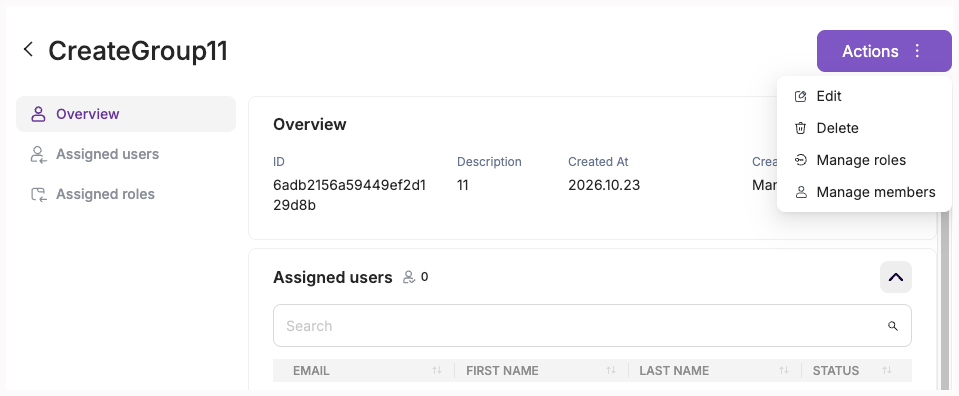
The Actions menu on the Group Details page provides the following options, depending on your permissions and the group type:
| Option | Description |
|---|---|
| Edit | Update the group's details. |
| Delete | Delete the group. |
| Manage Roles | Assign roles to the group or remove assigned roles. |
| Manage Members | Add users to the group or remove existing members. |
Only options available to you are displayed. If a Platform rule prevents an otherwise permitted option, it is disabled. Hover over it to see the reason.
Create Custom Group
To assign roles to users, you need to create a group, add users to it and assign existing roles to this group.
- If you do not have necessary custom roles yet, you can create a group without assigning roles or adding users. You can assign roles and add users later.
- All groups you create are custom groups. You cannot change the group type.
- You are not automatically added to a group you create. As its creator, you can access and manage the group, subject to Platform restrictions.
Roles assigned to a group apply to its current members and automatically to users who join later. Users who belong to multiple groups receive permissions from the roles assigned to all those groups. Inactive users receive these permissions when their accounts are reactivated.
The Platform includes predefined groups: All Users and Default Role Groups.
If you cannot create a group or assign the required roles, contact your Platform Administrator.
To create a custom group:
- On the Groups page, click Create Group.
-
Fill in the following fields:
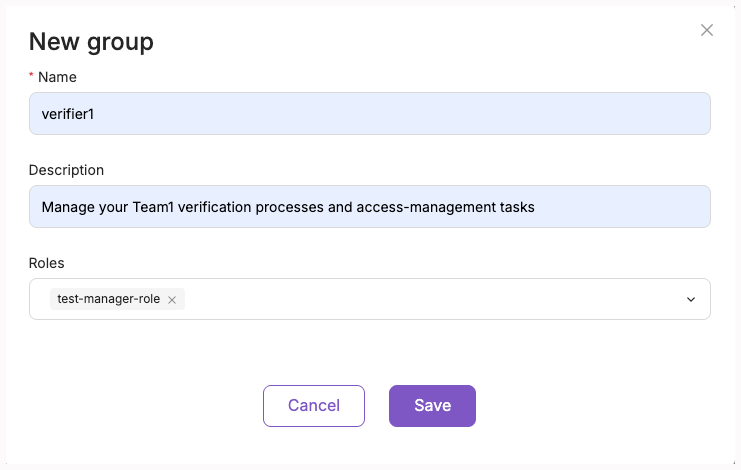
Field Description Name Required. Enter a unique group name of up to 255 characters. Group names must be unique, including across system groups. Description Optional. Enter a description of up to 500 characters. Roles Optional. Select one or more roles to assign to the group, if this option is available to you. If any field contains an invalid value, the Platform displays a validation message explaining what needs to be corrected.
-
Click Create.
To close the form without creating a group, click Cancel.
After successful creation, the Group Details page opens if you have access to it.
Edit Group
You can edit a custom group's name and description.
To edit a group:
- On the Groups page, click the group row to open Group Details.
- From the Actions menu, select Edit. If you need to edit a group but the Edit button is unavailable , contact your Platform Administrator.
-
In the Edit Group window, update the following fields:
Field Description Name Required. Enter a unique group name of up to 255 characters. Description Optional. Enter a description of up to 500 characters. If you enter an invalid value, the Platform displays a validation message.
-
Click Save to apply your changes.
The changes take effect immediately.
To close the window without saving, click Cancel.
Consider the following rules and restrictions:
- Group names must be unique across the Platform, including the names of default groups.
- You cannot edit the All Users or Default Role Groups.
Add Users to Group
You can add one or more users to a group to give them access through the roles assigned to that group.
You cannot add users to the All Users manually. Every new user is automatically added to this group when their account is created.
To add users to a group:
- On the Groups page, click the required group row to open Group Details.
- From the Actions menu, select Manage Members.
- In the Manage Members window, find the users you want to add. To search for users, enter at least three characters in the search field.
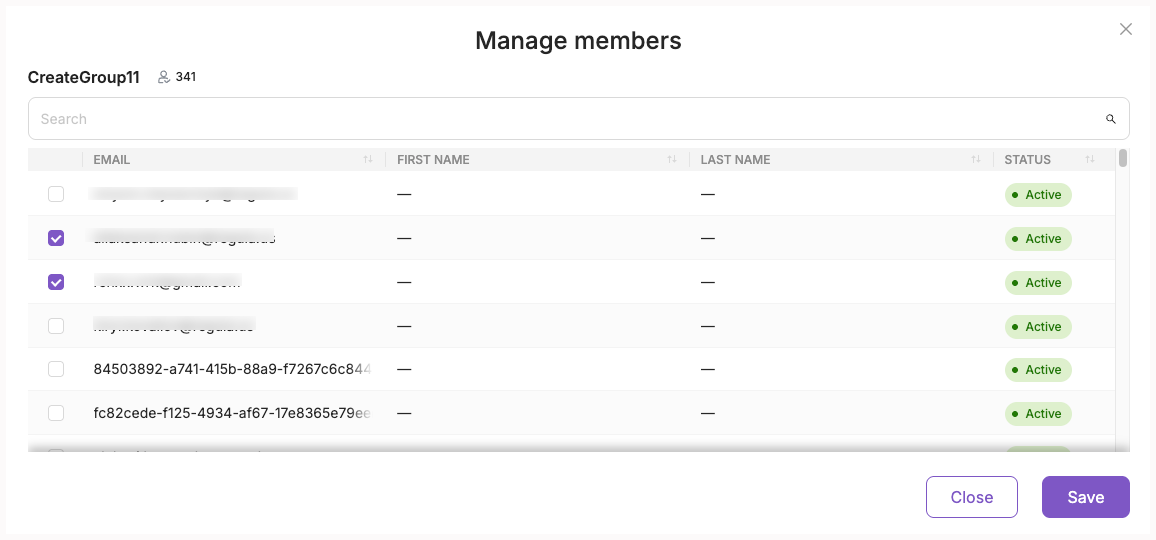
- Select the checkboxes next to the users you want to add. Users who already belong to the group are selected by default.
- Click Save to apply your changes.
To close the window without saving, click Close.
You can add multiple users at once, including inactive users and users who already belong to other groups.
When you add users to a group, they receive the permissions granted by its assigned roles immediately. For inactive users, these permissions become available when their accounts are reactivated.
After saving, the group's member count is updated. A confirmation message shows how many users were added or removed, including any skipped users and the reasons.
Consider the following rules and restrictions:
- You cannot add yourself to a group.
- If a selected user has been deleted or has already joined the group before you save, the Platform skips that user and applies the remaining valid changes.
Assign Roles to Group
You can assign one or more roles to a custom group to grant its members the permissions required for their work. You can also remove roles that are no longer needed.
Only custom role groups support changing assigned roles. You cannot manage roles assigned to a group you belong to even if you have the Admin role.
To assign or remove roles:
- On the Groups page, select the group you want to manage.
- On the Group Details page, select Manage Roles from the Actions menu.
- In the Manage Roles window, find the required roles. You can search by entering at least three characters. The search is case-insensitive.
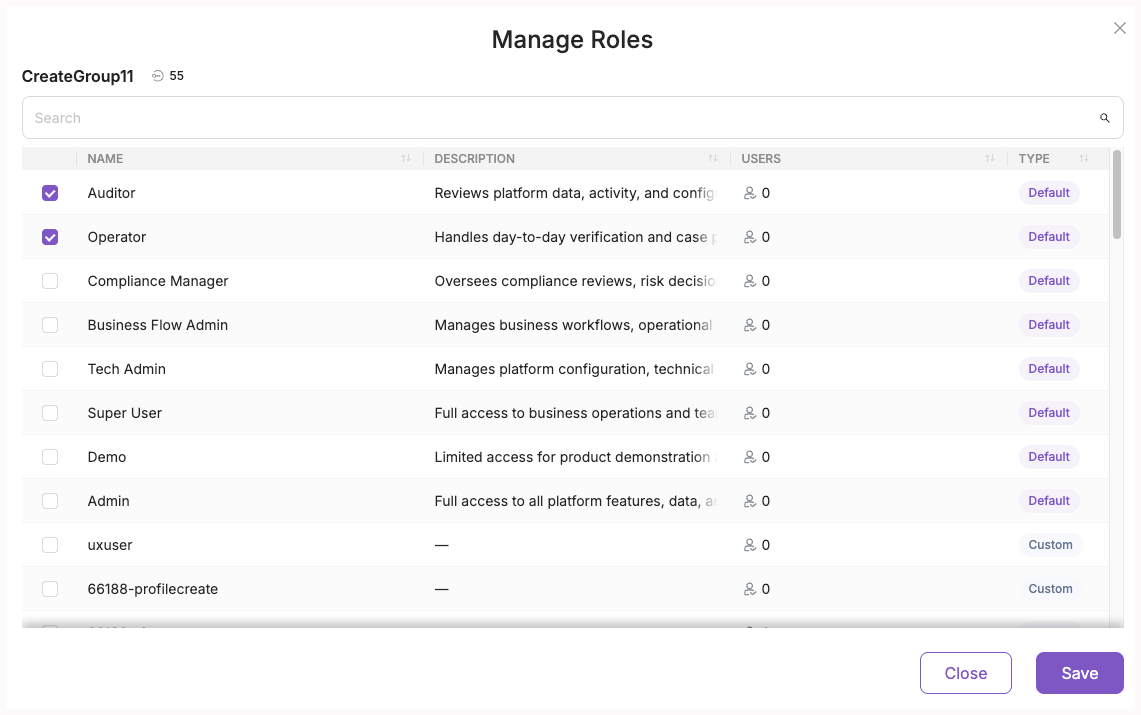
- Select the checkboxes next to roles you want to assign. To remove an assigned role, clear its checkbox. Roles already assigned to the group are selected by default.
- Click Save to apply your changes.
After saving, the Platform displays a confirmation message showing the roles assigned or removed and the number of current group members affected.
Consider the following rules and restrictions:
- You cannot manage roles assigned to a group you belong to, even if you have the built-in Admin role. If you otherwise have permission to manage roles, Manage Roles is disabled with a tooltip explaining the restriction.
- You cannot manage roles assigned to the All Users or Default Role Groups.
- All current group members receive permissions from newly assigned roles. Users added to the group later receive these permissions automatically.
- Removing a role removes the permissions granted exclusively through that role. If a user receives the same role through another group, they keep its permissions.
- You cannot remove roles if doing so would leave the Platform without an active Admin. In this case, the Platform rejects all changes in the operation.
- If a role was deleted, already assigned, or already removed before you save, the Platform may skip that change, report the reason, and apply the remaining valid changes.
Remove Users from Group
You can remove one or more users from a group when they no longer need the access provided through that group. If you cannot manage group members, contact your Platform Administrator.
When you remove users from a group, they immediately lose the roles they received only through that group. If they receive the same role through another group, they keep it.
To remove users from a group:
- On the Groups page, click the required group row to open Group Details.
- From the Actions menu, select Manage Members.
- In the Manage Members window, find the users you want to remove. To search for users, enter at least three characters in the search field.
- Clear the checkboxes next to the users you want to remove.
- Review your selection. Removing users from the group will revoke the roles they inherit only through that group.
- Click Save to apply your changes.
After saving, the group's member count is updated. A confirmation message shows how many users were added or removed, including any skipped users.
Consider the following rules and restrictions:
- You cannot remove yourself from a group. Your checkbox remains selected and cannot be cleared.
- You cannot manually remove users from the All Users group.
- If a selected user is no longer a member of the group when you save, the Platform skips that user and applies the remaining valid changes.
- See all rules here: Rules and restrictions
Delete Custom Group
You can delete a custom group that is no longer needed.
Before deleting a group, make sure it has no members. If the group contains any users, the Delete option is disabled.
To enable deletion, remove all users from the group, including inactive users.
To delete a group:
- On the Groups page, select the group you want to delete.
- On the Group Details page, open the Actions menu and select Delete.
- In the confirmation dialog, confirm the deletion.
After deletion, you are returned to the Groups page. The deleted group is no longer displayed or available for use.
Consider the following rules and restrictions:
- Default groups cannot be deleted.
- You can delete an empty group even if it has assigned roles. Deleting the group also removes its role assignments.
- Deleted groups are no longer available to users.
If deletion fails because the group has received new members, remove those members and try again.