Manage Roles with RBAC in IDV Platform
Access to IDV Platform features and resources is granted through roles assigned to groups.
The Roles feature allows Platform Administrators and other authorized users to manage roles and configure permissions that determine which resources users can access and which operations they can perform.
Depending on your assigned permissions, you can create and manage roles, review their permissions, and assign roles to groups to grant access to users.
If your responsibilities include managing roles and configuring permissions, first review the key concepts in Basic Concepts to understand how roles, groups, and permissions work together.
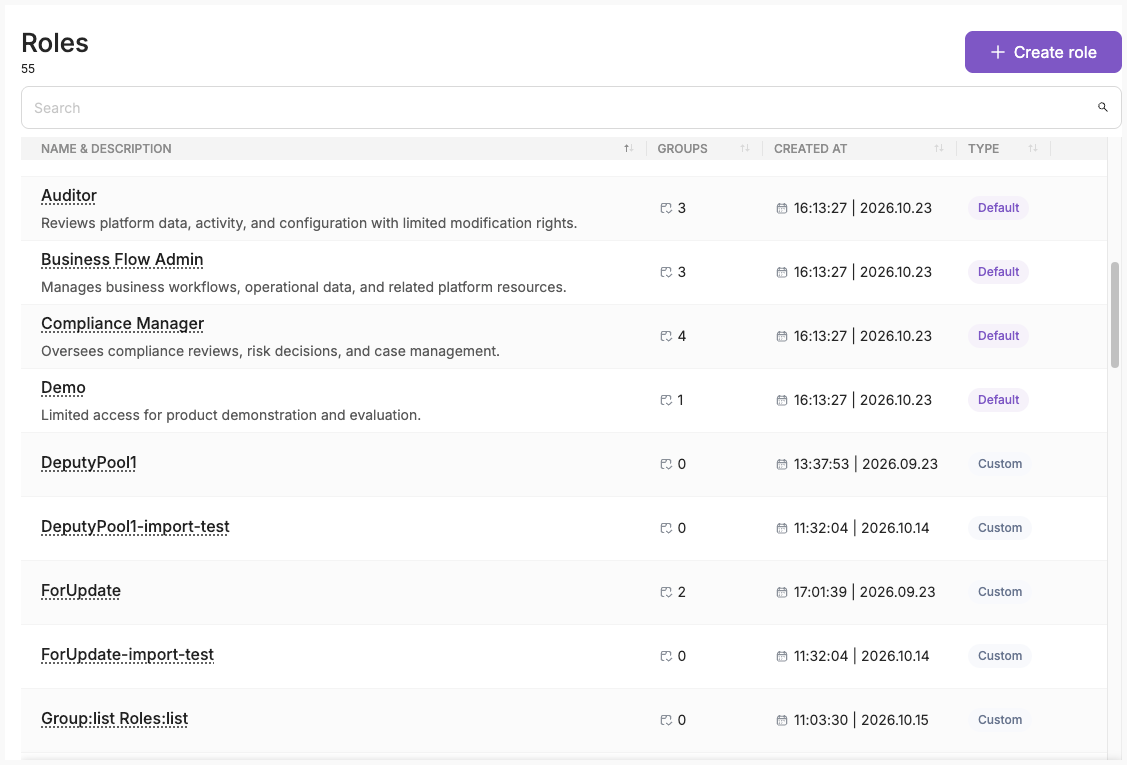
To open the Roles view, in the left sidebar, click Settings, select Team, and then click Roles. The Roles page opens as shown below:
Note
Available features and actions depend on your assigned roles and permissions. The interface available to you may differ from what is described in this guide. If you need additional permissions to perform your tasks, contact your Platform Administrator.
Main Steps to Configure Access Through Roles
- Plan Role Permissions based on the resources users need to access and the operations they need to perform.
- Review Existing Roles to determine whether a suitable role already exists.
- Choose one of the following options:
- Reuse an existing role if it already provides the required permissions.
- Duplicate an existing role and edit it if you need to modify its permissions.
- Create a role if no suitable role exists.
- If you created or duplicated a role, configure its permissions by selecting the required scopes, operations, and entities.
- Assign the role to a group.
- Add users to the group to grant them access through the assigned roles.
If you do not have the permissions required to perform a task, contact your Platform Administrator.
Plan Role Permissions
Before creating or updating a role, determine:
- Which resources users need to access—such as sessions, workflows, profiles, or profile pools.
- What users need to do—such as view, create, update, or delete resources.
- Which specific resources users should access—select individual entities where supported (such as specific sessions), or grant access to all resources.
To configure these settings, see Configure Role Permissions.
The Platform provides built-in default roles that cannot be deleted or edited. But you can duplicate them and then edit to your needs.
View Roles
To view roles, in the left sidebar click Settings, select Team, and then click Roles.
The Roles page displays the default and custom roles you have access to.
| Column | Description |
|---|---|
| Name & Description | Role's name and description below the name. |
| Type | Default or Custom. |
| Groups | Count of groups assigned to the role. |
| Created at | Shows the date the role was created or provisioned, based on its stored timestamp, in the Platform date format. |
The Roles page displays only roles you have permission to view. The Groups column shows the number of groups assigned to each role, including default groups where applicable.
By default, roles are sorted by Name in ascending alphabetical order. You can also sort roles by Type, Groups, or Created at.
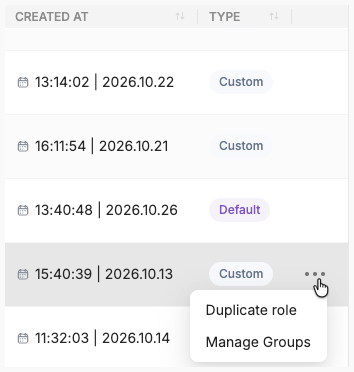
If you have permissions, you can also manage groups and duplicate roles from the table. To open the Manage Groups dialog, click ... in the last column of a role's row.
Search roles
To search for roles by name or description, enter at least three characters in the search field on the Roles page. The search is case-insensitive and runs automatically as you type.
Sort data
To sort data by columns in ascending/descending order, in the column headers, click the sort icons. By default, data is sorted in ascending order.
View Role Details
To view a role's details, click its row on the Roles page.
The Role Details page displays the role's name, description, and permissions.
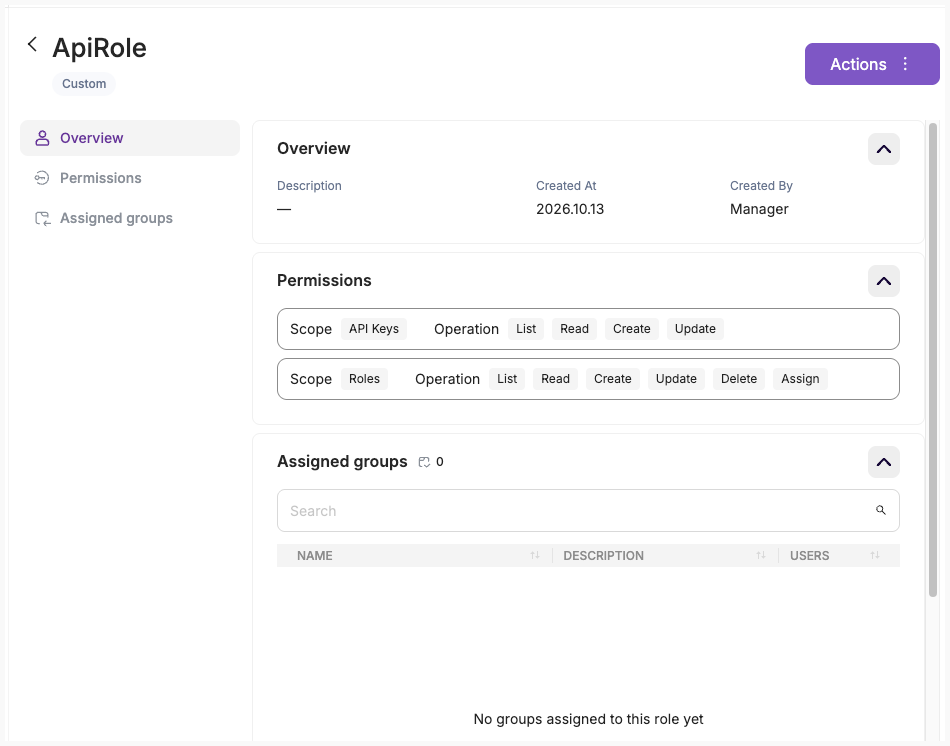
To view the groups assigned to the role, select Assigned Groups from the side menu. This section displays information about the assigned groups, including their names, descriptions, and members.
To open the Group Details page, click the group in the Assigned Groups table.
Create Role
Create a role to define what users can do in the Platform and which resources they can access.
If you are starting directly with role creation, see Getting Started to understand the overall access configuration process and how roles fit into it.
You cannot create a role that grants more access than you have. If necessary, contact your Platform Administrator.
To create a role:
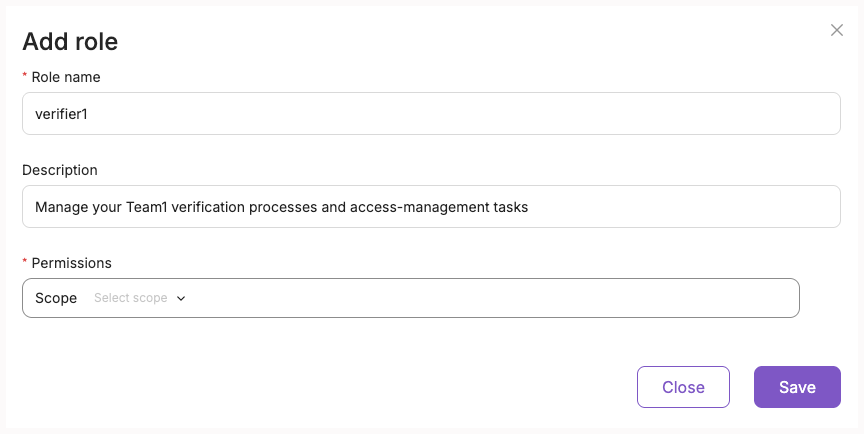
- On the Roles page, click Create Role.
- In the Role name field, enter a unique name (up to 255 characters).
- Optionally, enter a Description (up to 500 characters).
- In the Permissions section, configure at least one permission.
- Save the role.
The Role Details page opens for the new role.
Consider the following rules and restrictions: Creating a role does not automatically assign it to a group. To give users its permissions, assign the role to a group.
Configure Role Permissions
Configure role permissions to define which Platform resources users can access and what operations they can perform.
If you are starting directly with permission configuration, see Getting Started to understand the overall access configuration process and how permissions, roles, and groups work together. Or if you are the Platform Admin, refer to Configure Access
If a user belongs to several groups or a group has multiple roles, the user receives all permissions granted by those roles. Additional roles can expand access but cannot restrict permissions granted by other roles.
To configure permissions when creating or editing a custom role:
-
In the Permissions section of the Create Role dialog, configure the permission:
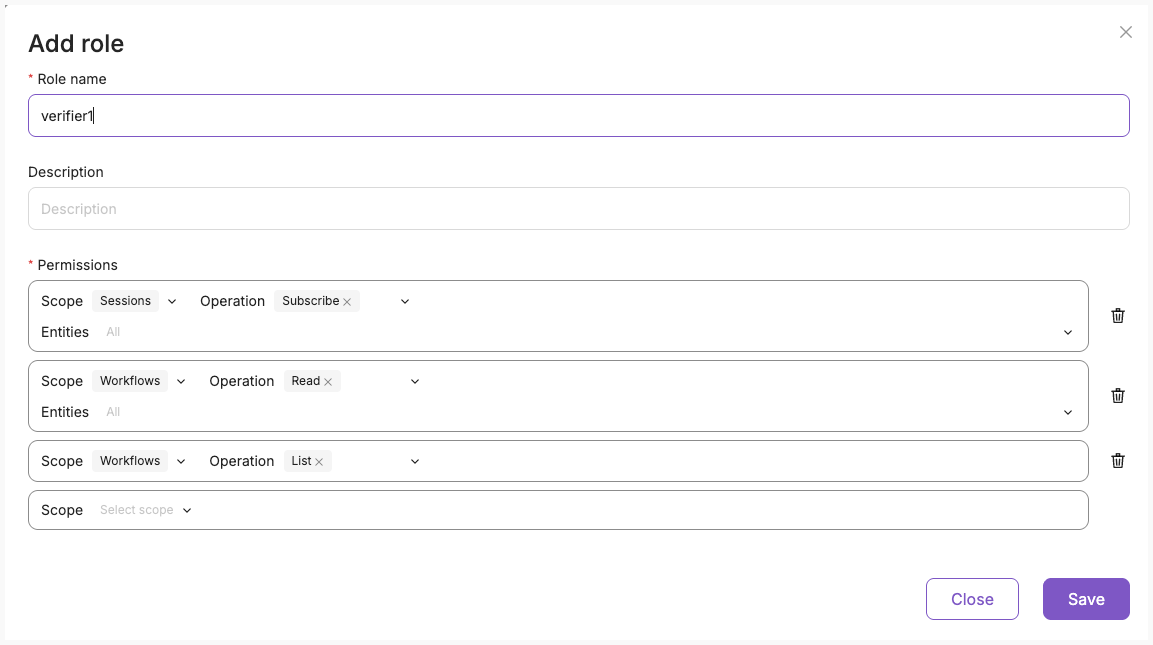
- Scope—select the resource type a user should have access to, such as Sessions, Profiles, or Workflows.
Some scopes depend on others. Make sure to grant access to all required dependent scopes. For example, if a user has access to Sessions but not Workflows, they cannot view sessions in the Platform. Additionally, access to the Views scope is required because sessions can only be viewed through Views.
-
Operations—select one or more operations a user should be able to perform. For descriptions of the available operations, see Operations.
-
Entities—choose whether the permission applies to all resources within the selected scope or only to specific entities. This field is available only for supported scopes and operations, as described in the notes below.
-
All (
*)—grants the selected operations for all existing and future resources within the scope. Entities can be selected by name or ID (for entities without names). To be able to select specific entities, select operations other than List, Create, or Assign.
Specific Entity ID selection is supported only for
session,workflow,person,pool,case,group,roles,banlist, andiam_application. For all other scopes, only All (*) is available.The availability of the entity selector depends on your permissions. Search results are filtered based on your permissions for the corresponding entities. However, being able to find an entity does not necessarily mean you can assign all operations to it. The Platform validates your permissions for the selected operations when you save the role.
The List, Create, and Assign operations apply to all entities within the selected scope and cannot be restricted to specific entities. If you select any of these operations together with operations restricted to specific entities, the entity restrictions are removed for all operations in the same permission. For example, if you select Update for a specific entity and then add Create, the Update operation will also apply to all entities. To keep Update restricted to a specific entity, configure Create and Update in separate permission rows.
For a detailed list of available scopes, operations, and supported entity-level access, see Permissions.
-
Add more permission rows if you need to configure additional scopes or different entity-level restrictions.
-
Save your changes.
Consider the following rules and restrictions:
- You can configure only scopes, operations, and entities that do not exceed your own permissions.
- You must configure at least one complete permission row to save a role.
- Each combination of scope and operation can appear only once in a role's permission set. The same scope can appear in multiple rows with different operations.
- The All option is available only if you have wildcard access for the selected scope.
- For scopes that support only global access, the Platform applies All automatically.
- Changes to a role's permissions take effect immediately for users who inherit that role through their groups.
If you are a Platform Administrator, consider the following recommendations:
- The
entity_search:list:*permission is required to search for and select specific entities when creating, viewing details of, editing, or duplicating roles. - Entity search results are filtered based on the user's Read permissions for the corresponding entities.
- The
entity_search:listpermission does not grant access to the entities themselves. - When saving a role, the Platform validates that the user has the required permissions for the selected scopes, operations, and entities. For example, if a user has
workflow:read:idA,idBandworkflow:update:idA, both workflows appear in the entity selector when configuring the Update operation. However, the user can select and save onlyidAfor that operation. - Refer to the complete list of Permissions.
Edit Custom Role
You can edit a custom role to update its details or change the permissions it grants. Default roles cannot be edited. If you need to edit a role but do not have the required permissions, contact your Platform Administrator. You can also duplicate a default role and then edit it.
To edit a role:
- On the Roles page, find the role you want to edit. You can search by role name or description.
- Open the role and in the Actions menu, click Edit.
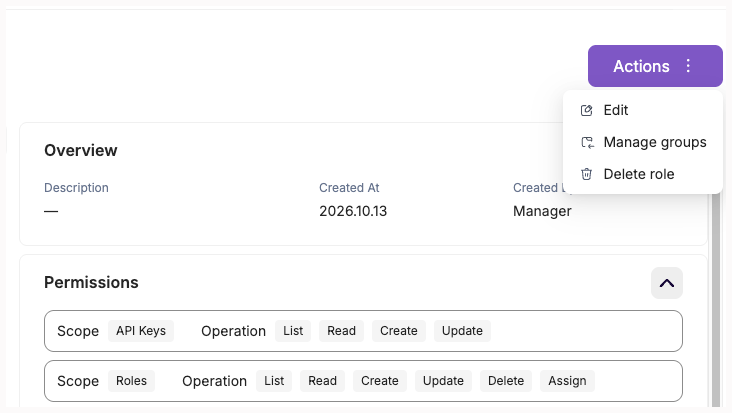
- Update the Name or Description, if needed.
- In the Permissions section, update the permissions as needed:
- Change the scope of an existing permission row.
- Add or remove operations.
- Change the selected entities.
- Add or remove permission rows.
- Save your changes.
For more information about scopes, operations, and entities, see Permissions.
Consider the following rules and restrictions:
- You must keep at least one complete permission row.
- Each combination of scope and operation can be used only once. The same scope can appear in multiple rows with different operations.
- Changes to role permissions take effect immediately for users who inherit the role through their groups.
- If the role is assigned to multiple groups, your changes affect members of all those groups.
Manage Groups (Assign Roles)
To grant users permissions that a role provides, you need to assign a role to a custom group users belong to.
You can assign a role to one or more groups. You can assign both default and custom roles.
To assign a role to groups:
- On the Roles page, in the table find the role you want to assign to groups.
- In the last column of the table for this role, click "...", and then in the menu click Manage Groups.
Alternatively, open the role details view, and in the Actions menu, click Manage Groups:
- Review the groups already assigned to the role. You can see each group's current roles and member count.
- Select one or more additional groups. To find a group, start typing its name in the search field. Search starts automatically after you enter at least three characters and is case-insensitive.
- Review your selection and confirm the assignment.
You can also assign roles while creating a group.
The role is assigned to the selected groups, and their members receive its permissions immediately.
If a user belongs to multiple groups, they receive the combined permissions from all roles assigned to those groups. When assigning a role to a group, consider the access users already have through their other groups. Adding a role can expand their access, but it cannot restrict access granted by other roles.
For example, if one role allows a user to view sessions and another allows them to update sessions, the user can both view and update sessions.
Consider the following rules and restrictions:
- You must have permission to view and assign the selected role.
- You must have access to the target group.
- You cannot change role assignments for a group you belong to, even if you have the built-in Admin role.
- Assigning a role to a group grants its permissions to all group members. Users added to the group later also inherit those permissions.
If you need to assign a role but do not have the required permissions, contact your Platform Administrator.
Unassign Role from Groups
You can remove a role from one or more groups. This removes the permissions granted by that role from the group's members, unless they also receive those permissions through other roles or groups. You can unassign both default and custom roles.
To unassign a role from groups:
- On the Roles page, in the table find the role you want to unassign from groups.
- In the last column of the table for this role, click "...", and then click Manage Groups.
- Clear the checkboxes next to the groups from which you want to remove the role.
- Click Save.
The role is removed from the selected groups. Their members no longer inherit the role through those groups.
Consider the following rules and restrictions:
- Removing a role from a group affects all its current members.
- Users retain permissions granted through their other roles and groups.
- You cannot remove a role assignment if doing so would leave the Platform without at least one active user holding the Admin role.
- You cannot remove your own role assignment.
If you cannot remove a role assignment, contact your Platform Administrator.
Duplicate Role
You can duplicate an existing default or custom role to create a new custom role based on its permissions. This is useful when you need a role with permissions similar to an existing one but want to make some changes without affecting the original role.
To duplicate a role:
- On the Roles page, select the role you want to duplicate.
- In the last column of the table for this role, click "...", and then click Duplicate Role.
- The Create Role form opens with the permissions copied from the original role that you are allowed to grant.
- Enter a unique Name (up to 255 characters).
- Optionally, enter a Description (up to 500 characters).
- Review the copied permissions and modify them if needed.
- Save the role.
For more details about filling in the fields, refer to Create Custom Role and Configure Permissions
The Role Details page opens for the new role.
Consider the following rules and restrictions:
- The name and description are not copied from the original role. You must enter a new name.
- Only permissions you already have are copied. If some permissions cannot be copied, the Platform displays a warning.
- The new role is an independent Custom role. Changes to it do not affect the original role.
- Creating a duplicate does not automatically assign the new role to any groups.
If you need to duplicate a role but do not have the required permissions, contact your Platform Administrator.
Delete Custom Role
You can delete a custom role when it is no longer needed.
To delete a custom role:
- On the Roles page, open the custom role you want to delete.
- On the Role Details page, click Delete Role.
- In the confirmation dialog, click Delete to confirm.
After deletion, the Platform returns to the Roles page.
Consider the following rules and restrictions:
- You need permissions to a delete a group.
- You cannot delete Default roles.
- You cannot delete a role that is assigned to one or more groups. First, remove the role from all groups.
- If the role is still assigned to a group, Delete is disabled.
- Deletion cannot be undone.