Manage Users with RBAC in IDV Platform
A user is a person who has an account in IDV Platform, such as a Platform Administrator, compliance officer, or verification operator.
The Users feature allows Platform Administrators and other authorized users to manage user accounts and control user access.
Depending on your assigned permissions, you can:
- View and search for users
- Create users
- View user details
- Edit user details
- Activate or deactivate user accounts
If your responsibilities include managing user accounts, first review the key concepts in Basic Concepts to understand how users, groups, roles, and permissions work together.
View Users
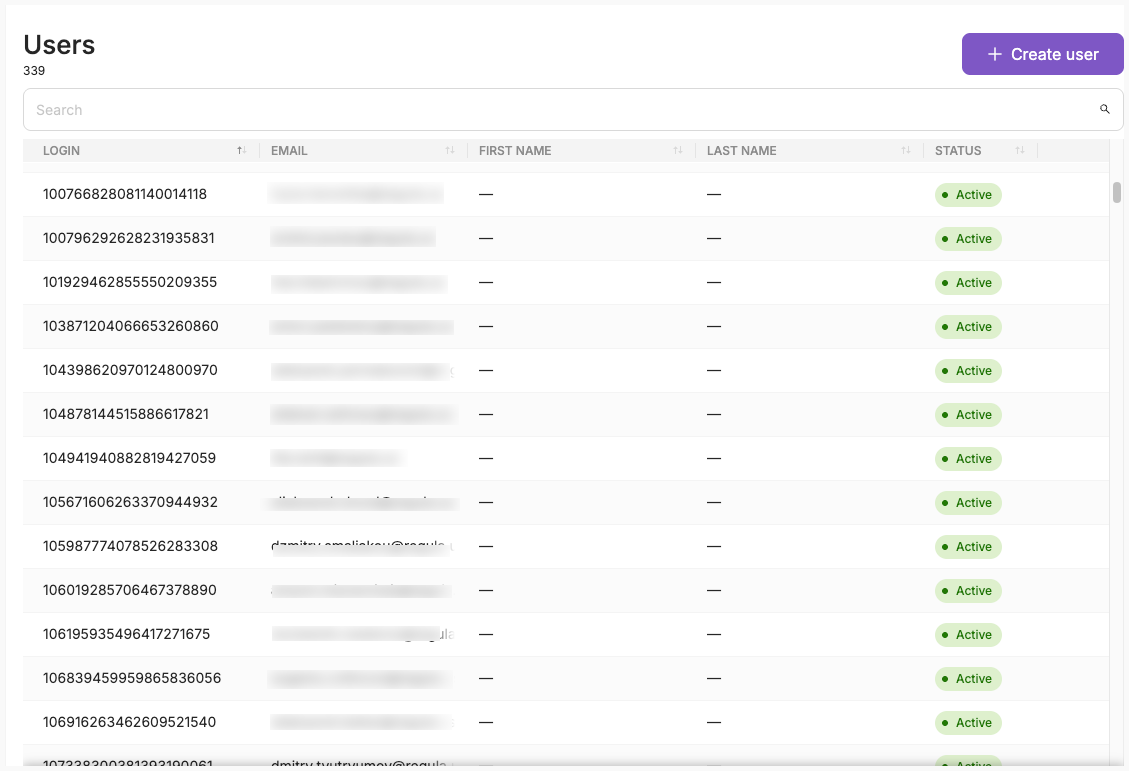
To view the list of users, in the left sidebar, click Settings, select Team, and then click Users. The Users page opens as shown below:
Note
Available features and actions depend on your assigned roles and permissions. The interface available to you may differ from what is described in this guide.
If you cannot access the Users page or see the users you need, contact your Platform Administrator.
The Users page shows each user's current status and the following information:
| Column | Description |
|---|---|
| Login | User's login. |
| User's email address, if specified. | |
| First Name | User's first name, if specified. |
| Last Name | User's last name, if specified. |
| Status | Current user status: Active or Inactive. |
By default, the Platform sorts users by Login in ascending alphabetical order and displays active and inactive users in the same list. All newly added users receive the Active status by default. It means they can access the Platform and its resources depending on their permissions.
To open the row menu to perform actions on users from the table, click ... in a user's row. The button appears when you hover over the cell.
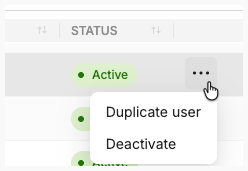
From this menu, you can activate or deactivate a user.
- The available options depend on your permissions, the user's status, and applicable Platform rules.
- If no options are available to you, the ... button is not displayed.
- If an option is unavailable due to a Platform rule, it is disabled. Hover over it to see the reason.
- If you need additional access, contact your Platform Administrator.
Search users
To search for users, start typing in the search field on the Users page. Enter at least three characters. The search is case-sensitive and runs automatically as you type.
View User Details
To view a user's details, click their row on the Users page.
The User Details page opens, with the user's login displayed in the page header.
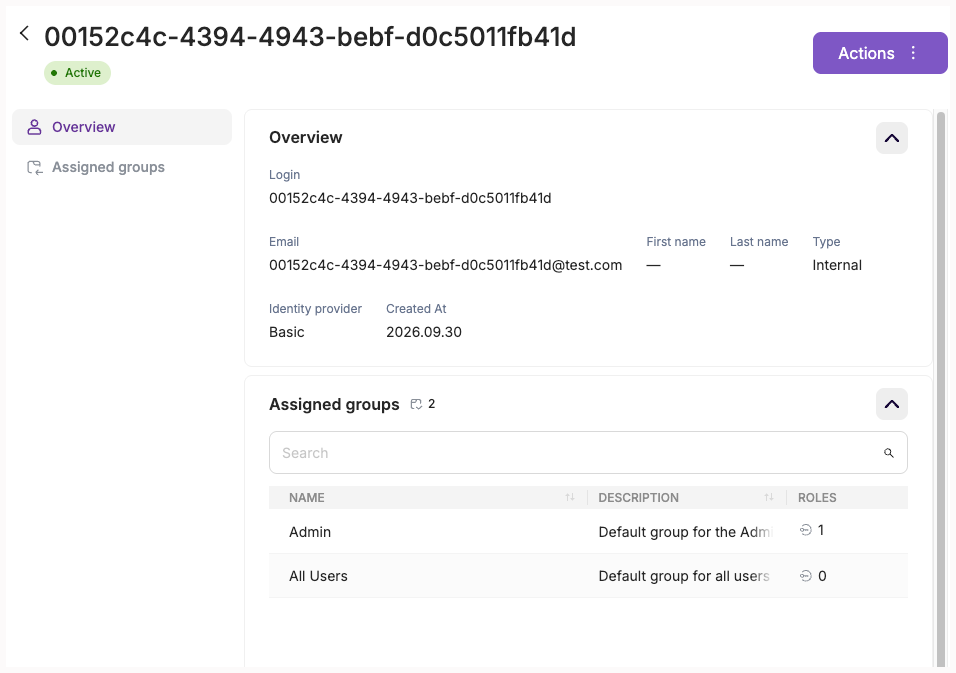
To see the user's account information, in the User Details view, go to the Overview section.
To view the groups a user belongs to and the roles assigned through those groups, go to the Assigned Groups section.
Overview
The following information is displayed in this section:
| Field | Description |
|---|---|
| Login | The user's login. Displayed only for Internal users. |
| The user's email address. | |
| Type | The user type: Internal or External. |
| First Name | The user's first name. |
| Last Name | The user's last name. |
| Identity Provider | Basic for Internal users or the SSO provider for External users. |
The information displayed depends on the user type:
- Internal users—accounts managed directly in the IDV Platform. Their login is displayed, and Identity Provider shows the platform itself.
- External users—accounts managed through an external identity provider (SSO). Their login is not displayed, and Identity Provider shows
Basic.
The user's status is displayed in the page header. All fields are read-only in the view mode.
Assigned groups
The table contains the following columns:
| Column | Description |
|---|---|
| Name | Group name. |
| Description | Group description. |
| Roles | Roles assigned to the group and inherited by its members. |
To view the roles assigned to a group, hover over the role count in the Roles column. Role names are displayed if you have the required permissions.
If a group has no assigned roles, the Roles column is empty.
To find a specific group, start typing its name or description in the search field. Enter at least three characters. The search runs automatically and is case-insensitive.
If the selected user does not belong to any groups, an empty state is displayed.
Note
Roles are assigned through group membership and cannot be assigned or removed directly from the user's details.
Edit User Details
You can edit a user's account information, including for inactive users, if you have the required permissions.
You cannot edit your own account, even if you have the Admin role. In this case, Edit is disabled, and a tooltip explains the restriction.
To edit user details:
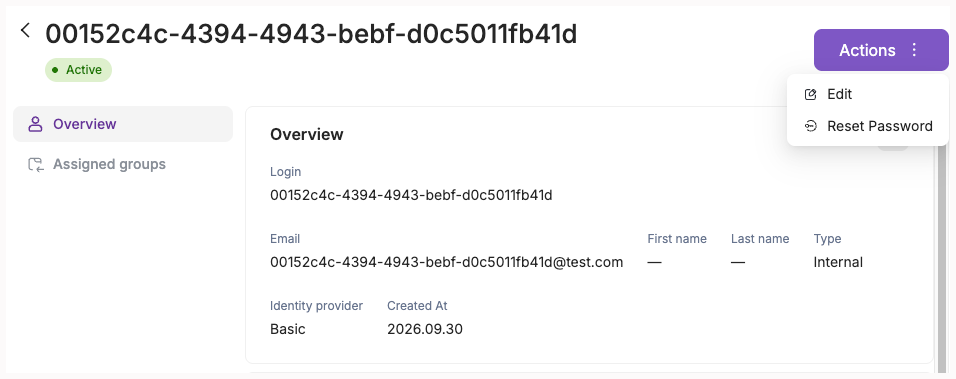
- In the User Details view, click Actions, and select Edit.
-
Update necessary fields.
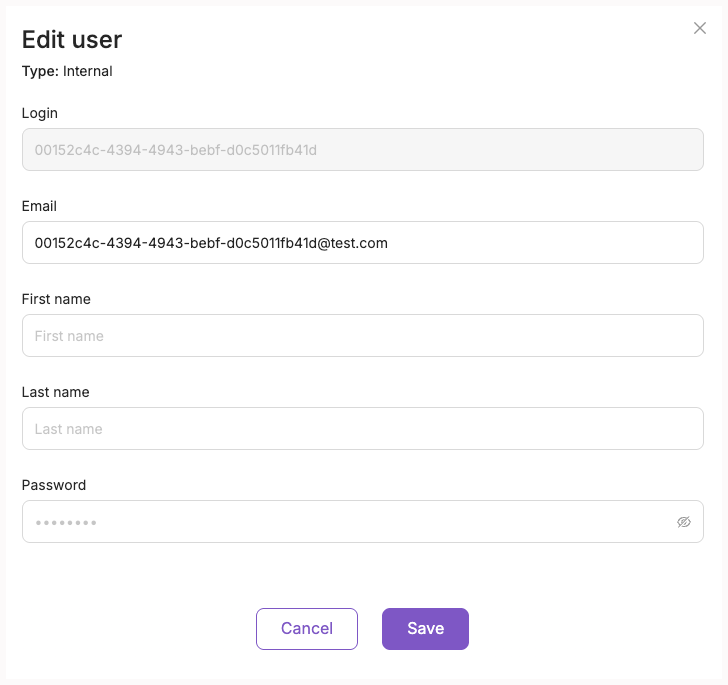
If a field contains an invalid value, an error message explains what needs to be corrected.
-
Click Save to apply your changes.
The fields available for editing depend on how the user's account is managed.
| Field | Account managed in IDV Platform | Account managed through an identity provider |
|---|---|---|
| Login | Read-only; maximum 64 characters, defined at creation. | Not displayed. |
| Optional and editable. Must have a valid format. | Read-only; provided by the identity provider. | |
| First Name | Optional and editable; maximum 255 characters. | Optional and editable; maximum 255 characters. |
| Last Name | Optional and editable; maximum 255 characters. | Optional and editable; maximum 255 characters. |
| Password | Can be changed; 8–255 characters. Leave empty to keep the current password. | Not displayed. |
The user's type is displayed at the top of the edit form and cannot be changed.
Consider the following rules and restrictions:
- The existing password is never displayed. For Internal users, entering a new password replaces the current one.
- Changes take effect immediately after a successful save.
Reset User Password
You can generate a password reset link for a user whose account is managed in the IDV Platform.
The Reset Password option is unavailable for:
- Your own account—you cannot reset your own password using this option.
- Accounts managed through an external identity provider—passwords for these accounts are managed outside the IDV Platform.
If either restriction applies, Reset Password is disabled, and a tooltip explains why. If you do not have the required permission, the option is not displayed.
To generate a password reset link:
- In the Users view, click the required user's row.
- In the User Details view, in the page header, click Reset Password.
- In the dialog, specify the link validity period in the TTL field, in seconds. The default value is
3600seconds (1 hour).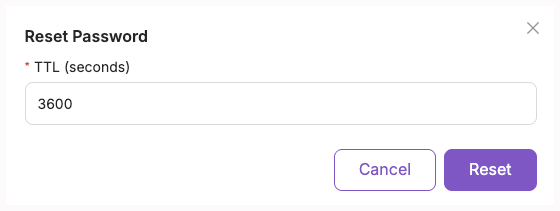
- Click Reset.
- In the dialog that displays the generated link, click Copy.
- Share the link with the user through an appropriate secure channel.
The user can follow the link to set a new password.
To close the dialog without generating a link, click Cancel.
Create User
You can create a new user whose account will be managed in the IDV Platform.
New users are created with Active status and are automatically added to the All Users group. To grant a new user permissions, add them to a group with assigned roles.
Note
Users whose accounts are managed through an external identity provider cannot be created manually. Their accounts are provisioned automatically.
To create a user:
- In the Users view, click Create User.
-
Fill in the following fields:
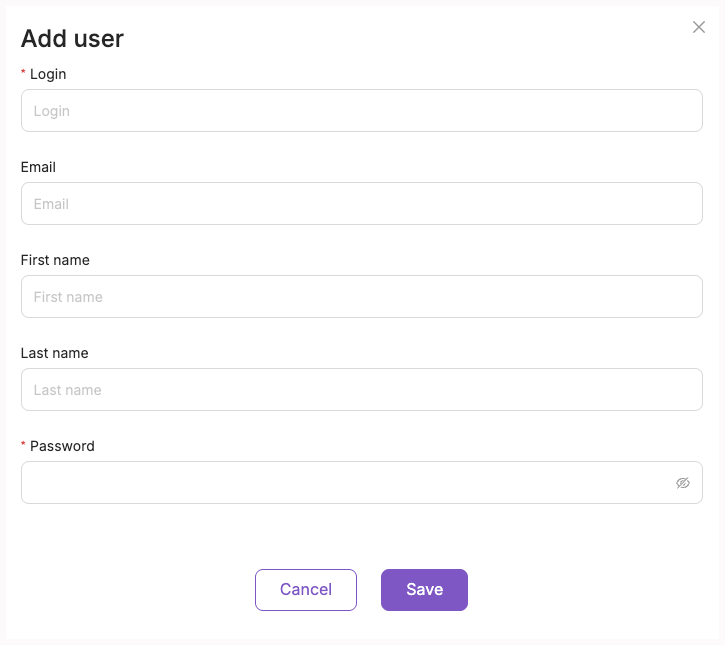
Field Description Login Required. Must be unique within the platform and contain no more than 64 characters. Email Optional. Must have a valid email format. First Name Optional. Maximum 255 characters. Last Name Optional. Maximum 255 characters. Password Required. Must contain 8–64 characters. If a field contains an invalid value or the login or email is already in use, the platform displays a validation error. Correct the value and try again.
-
Click Save to create the user account.
Manage New User
You do not select a group or role when creating a user.
The Platform automatically adds each new user to the default All Users group, which has no assigned roles and does not grant any role-based permissions. All users remain members of this group permanently.
To grant access to Platform features and resources, add the user to the appropriate groups. See Manage Group Members.
Activate or Deactivate User
A newly added user receives the Active status by default.
You can activate or deactivate other users to control their access to the Platform.
- Deactivate—changes the user's status to Inactive and prevents them from accessing the Platform.
- Activate—changes the user's status to Active and allows them to log in again.
Activate user
To activate a user:
- On the Users page, find the user you want to activate.
-
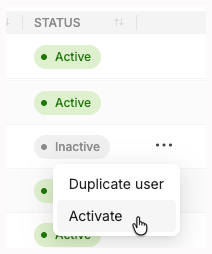
Click the ... menu in the user's row.
-
Select Activate.
The user's status changes to Active, and they can log in to the Platform again.
Note
You cannot activate your own account. The Activate action is disabled for your own account, with a tooltip explaining the restriction.
Deactivate user
To deactivate a user:
- On the Users page, find the user you want to deactivate.
-
Click the ... menu in the user's row.
-
Select Deactivate.
- In the confirmation dialog, click Deactivate to confirm.
The user's status changes to Inactive immediately.
A deactivated user:
- Cannot log in to the platform.
- Cannot start new sessions.
- Cannot obtain or refresh access tokens.
Inactive users remain visible in the Users list and their account details can still be edited. When the user is reactivated, their access is restored based on the current group memberships, roles, and permissions. If any groups or roles were removed, or role permissions were modified while the user was inactive, these changes are reflected in the user's access after reactivation.
Note
You cannot deactivate your own account or the last active user with the default Admin role. In these cases, Deactivate is disabled, and a tooltip explains why.